Top PeopleSoft Jobs

Best PeopleSoft Jobs

Showing posts with label PeopleSoft Compare Process. Show all posts

Thursday, November 8, 2012

New UPGCUST PeopleSoft Upgrade Compare Process - Part 1


How Does the New UPGCUST Compare works during PeopleSoft Application Upgrades.
If you have previously worked on PeopleSoft Application Upgrades for older version below 8.8, you would have done database compares between the source and demo;
The source being the newly released demo and the target being copy of prod; The Compare process creates the UPGCUST project in the source database that would give you the list of changes between the both databases; you select what changes you want to keep and what not to take during this compare process. The below screen shot provides the process of older version of upgrade compares:

However, if you are working on upgrade to 9.1 or the upcoming 9.2 release, you would have to go through a roundabout compare process;
This could be confusing when you first go through the document; What Oracle indicates with the old method is - to remove the full database compare between the new release and the copy of production database AFTER the tools upgrades and also to reduce the time that it takes during the comparison process. Also, the idea is to expedite the reloading of customizations, i.e. a chance to test their customizations on the new Demo before proceeding.
Now let’s go through the New Compare Process in PeopleSoft Application Upgrades. Below are the steps explained with the new compare process :
Identify Customizations:
•Rename Records and Fields
•Run on Copy of Production and Old Release Demo
•Full database compare between Copy of Production and old release Demo database
•Resultant project contains customized objects
•Project has to be named UPGCUST.
(Here you run a Filter script PUUPX99.DMS, This step removes all objects from the UPGCUST project that are not marked *Changed or *Unchanged in your Copy of Production environment. This step is used to isolate only custom objects in the UPGCUST project.)

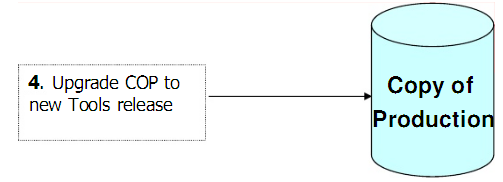
Tools Upgrade:
•Upgrade Copy of Production database to new Tools release
Compare/Copy Customizations:
•Compare custom projects in COP to new release Demo database
•Analyze upgrade status for custom objects
•Apply customizations to new Demo database
•Copy custom objects to new Demo preserve them


What You need here is to flag the upgrade check box(i.e. check them to be copied) any customizations that you want to keep. If you do not flag them the customizations will not be carried over, i.e. if you had customized a delivered object in older version and if you do not select the upgrade check box, it will NOT be carried over and then you would have to re-apply at the end of the upgrade.
Copy New Release Objects:
•Migrate object definitions plus customizations from the new Demo to the COP.

So the above step would involve:
PT_RELEASE_EXPORT.DMS script which exports all the PeopleTools tables info (that has the new release objects and your customizations) from the Source system i.e. the New Release.
 PT_RELEASE_IMPORT.DMS script which imports the new release objects and your customizations into your Copy of Production database.

In Nutshell, the whole thing explained in one screen shot:

What I would like to do is, take some example of objects and run through the traditional upgrade scenario and then through the delivered process and see how it looks from compare process. This will be in Part – 2;

Wednesday, June 6, 2007

Compare Process


The Application designer upgrade tools are designed to streamline the process of merging system objects, such as records, pages and PeopleCode from one PeopleSoft Database to another. Once you install PeopleSoft for the first time, you customize it for your business requirements by changing the Pages, Records, Menus etc. Since PeopleSoft also delivers new applications with changes, these changes may be distinct from the changes you have made or they could overlap in some area. For this, when you perform an upgrade, you have to decide whether to keep the modification you have made or accept the modification made by PeopleSoft. This is done by Compare Process, where you compare the application between 2 databases, the Source and the Target.


  • The Source Database is the source of new changes (usually New Release)

  • The Target is the database to which you are moving these changes (Copy of Production or Production Database)

There are 3 steps during the compare process which would need to decide which components you want from the source and then merge them into your target database. The 3 core steps of the compare process that utilize the Application Designer Upgrade tools consist of the following procedures:

Compare Compares the objects between the Source and the Target databases and produces a PeopleSoft Project that identifies objects with differences the 2 databases.

Report Produces reports that detail the differences between the objects in the project Copy Merge the source database and target database using the entries identified during the compare process that have been marked for updates.

The PeopleSoft system uses several system tables PSRELEASE and the various definition tables, to record modified data time and which operator modified the object. This PSRELEASE table contains rows of data for every release level at which the database has ever existed. It has 2 columns, RELEASEDTTM and RELEASELABEL. The first column RELEASEDTTM contains a date time stamp identifying when each release level was stamped. RELEASELABEL identifies the release level. When comparing 2 databases, you can compare on date or on release level. Both methods use data and time to determine the object status. Each PeopleTools Object type record for example, for object type of Records, there is a PeopleTool table called PSRECDEFN, this would include 2 columns like LASTUPDORPID and LASTUPDDTTM which would tell us who the last updated Oprid is and Last updated date time.

There are various Object Status like:


  • Unknown The default status of all non-comparable objects
  • Absent Found in other DB and not in this one.
  • Changed The LASTUPDOPRID value is “PPLSOFT” and its LASTUPDDTTM value is greater than datetime stamp of the Comparison Release database, which indicate the new release has the modified objects
  • Unchanged The LASTUPDOPRID value is “PPLSOFT” and its LASTUPDDTTM value is less than or equal to the datetime stamp of the Comparison Release database, which indicate the PeopleSoft last modified the object prior to the
    Comparison release.
  • Changed* The LASTUPDOPRID value is not “PPLSOFT” and its LASTUPDDTTM value is greater than datetime stamp of the Comparison Release database, which indicate the you modified the object since the Comparison release.
  • Unchanged* The LASTUPDOPRID value is not “PPLSOFT” and its LASTUPDDTTM value is less than or equal to the datetime stamp of the Comparison Release database, which indicate that you modified the object prior to the Comparison release.
  • Same The object has been compared and is defined the same in both the databases.


Once the compare process is done, it assigns default actions for each object depending on what needs to be done to make the Target database consistent with source. The action types include:


  • Copy - the Object will be copied to the target database
  • Delete - the Object will be deleted from the target database
  • CopyProp - For Record Definitions Properties, choose to copy the
    record properties without copying Record Fields.
  • None - Appears if the objects are identical in the source and target database.